Timse
Le tue sessioni di lavoro, nella barra dei menu di macOS.
macOS 14.0 o successivo · Versione 1.1
Uno sguardo a cosa fa
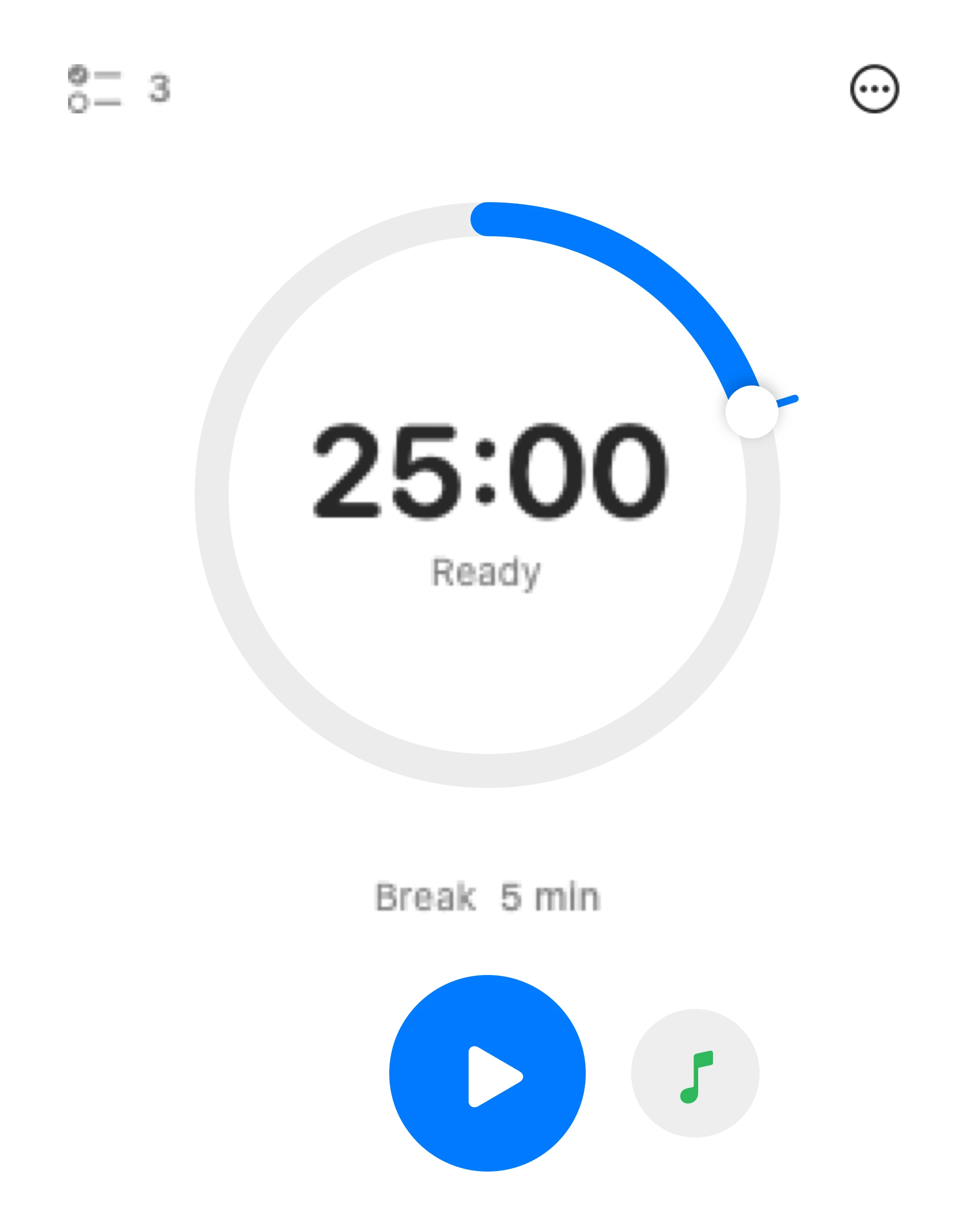
Utilizza l'anello per scegliere la durata della tua sessione.
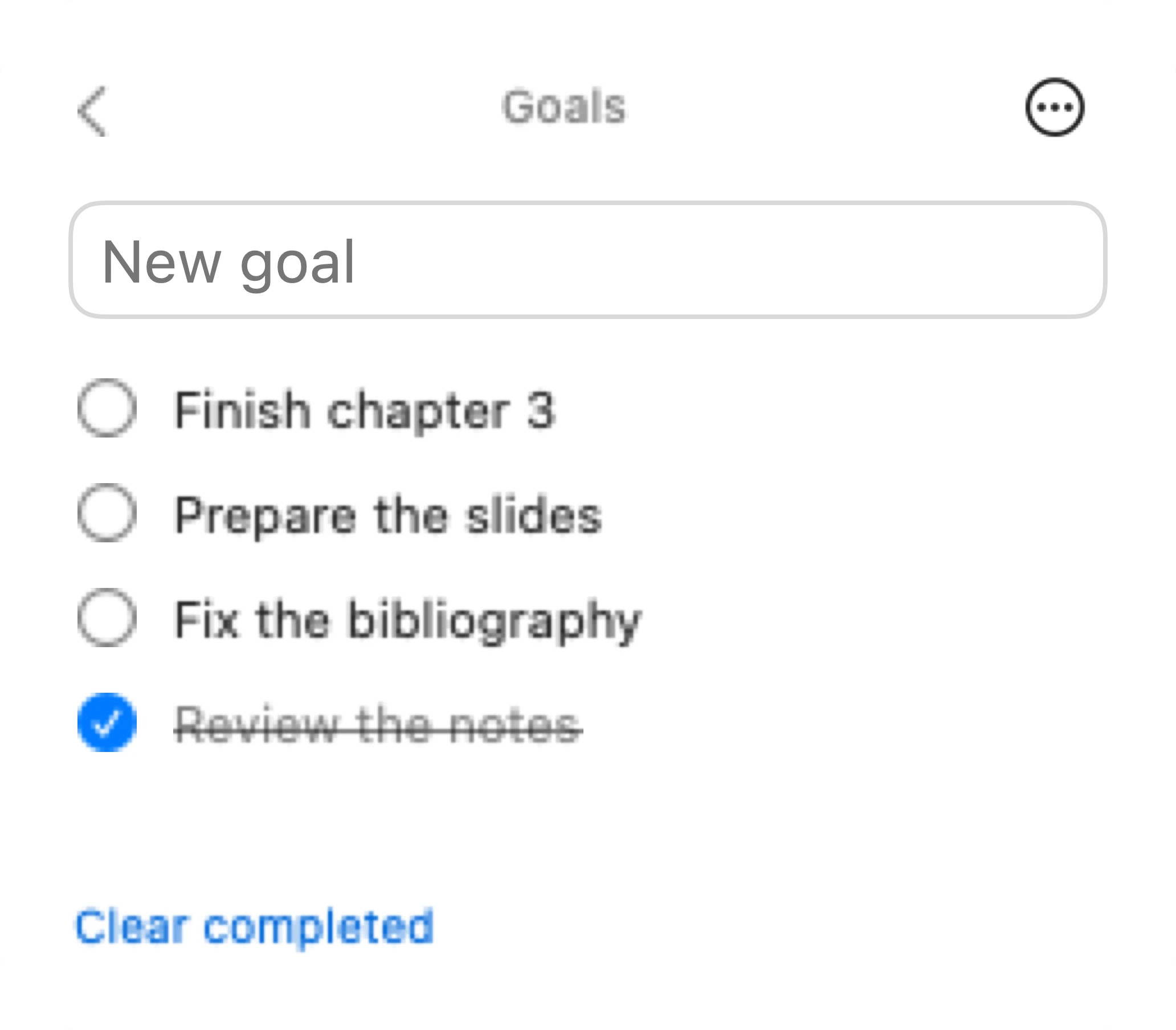
Utilizza la sezione Goals per ricordarti tutto ciò che devi fare.
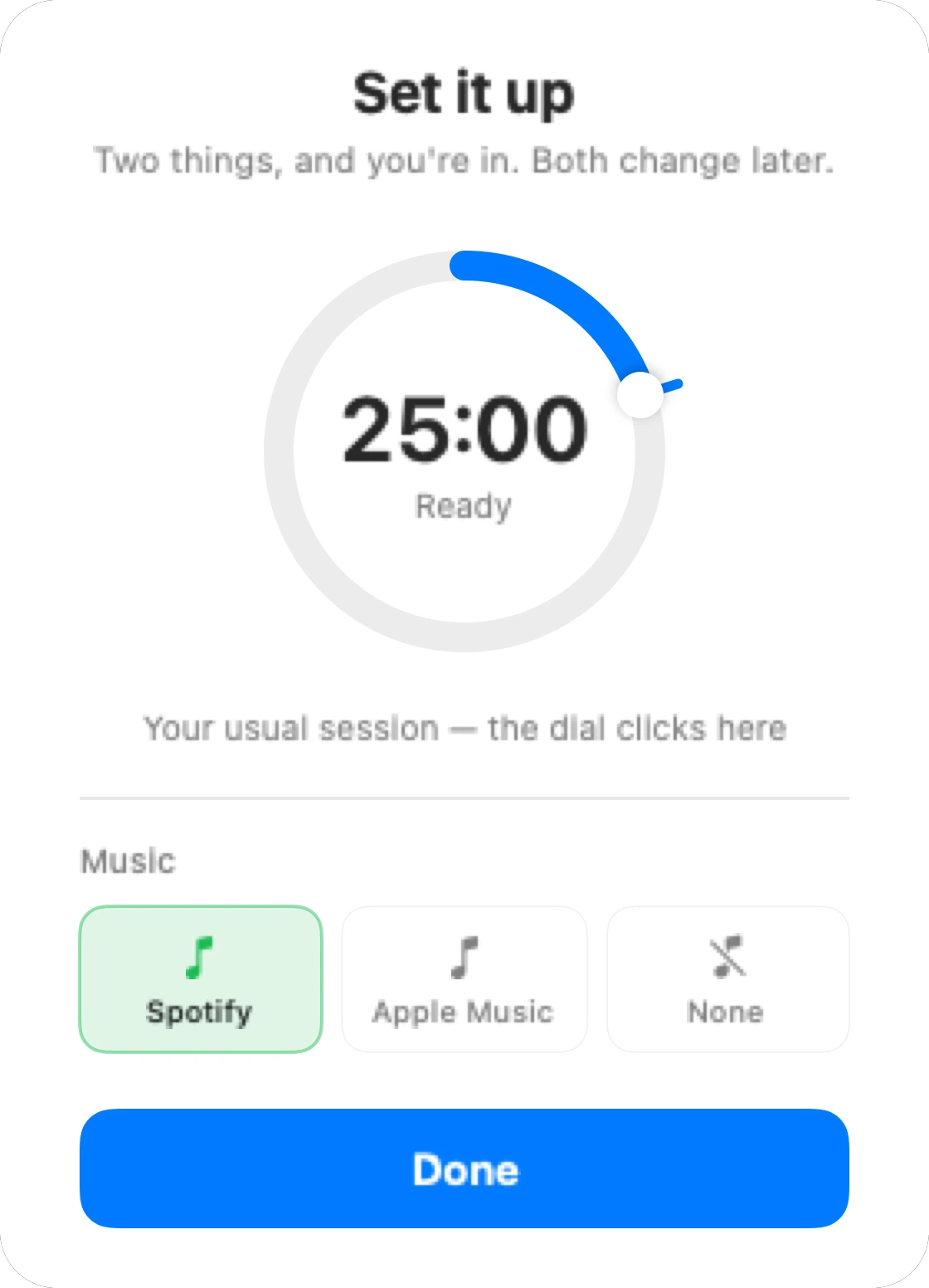
Personalizzala come vuoi.
Smart widget
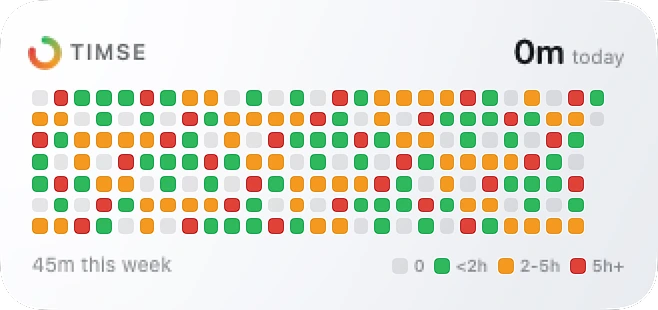
Ogni sessione che hai fatto
Un quadratino al giorno, verde per le giornate più leggere e rosso per quelle in cui ti sei davvero spinto al limite.
Lo stesso widget durante la sessione
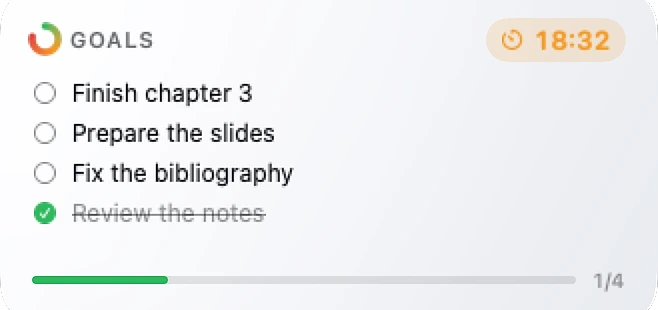
Nel momento in cui parte la tua sessione di lavoro, il widget inizia a mostrare gli obiettivi che hai inserito nell'app.
Pausa
Durante la pausa questa animazione ti segnalerà la fine della tua sessione di lavoro. Puoi scegliere anche se bloccare lo schermo oppure mantenere solo la notifica.
-
Il ciclo continuo
Accendilo e la pausa rientra dritta nel lavoro, di continuo, finché non lo fermi. Spegnilo e Timse si azzera alla fine della pausa, poi aspetta. In entrambi i casi puoi mettere in pausa il conteggio o saltare la fase in cui sei.
-
Come finisce una fase
Due suoni diversi, uno per la fine del lavoro e uno per la fine della pausa, così sai cos'è successo senza guardare. Sullo schermo hai o un respiro di quattro secondi che sfuma da solo, o il velo che copre tutto: uno o l'altro, mai entrambi.
-
Non perde mai il conto
Timse non conta i secondi, segna il momento in cui la tua sessione finisce. Chiudi il Mac a metà di un pomodoro e riaprilo dopo: quello che vedi al risveglio è il tempo che resta davvero, non il tempo rimasto congelato.
-
Nativo e leggero
Scritto in Swift per macOS. Niente Electron e niente web view: sta nella barra dei menu, parte al login se glielo chiedi, e un pulsante accanto a play apre Spotify o Apple Music, quello che hai scelto. Non sceglierne nessuno e il pulsante non c'è proprio.
- Licenza inclusa, qualunque cifra scegli
- macOS 14.0 Sonoma o successivo
- Apple Silicon
- Rimborso entro 14 giorni su quanto hai lasciato
- Aggiornamenti inclusi, si installano nell'app
Timse è nato da una frustrazione. Ogni app pomodoro che ho provato mi faceva tre domande prima di lasciarmi lavorare: quanto concentrarmi, quanto riposare, quante volte ripetere. Ne volevo una che ne facesse una sola.
Tutto il resto viene da lì. La pausa non è un'impostazione perché il rapporto giusto è già noto. Il quadrante è anche il comando perché un altro cursore sotto il timer era un'altra cosa da guardare. E lo storico non è nel pannello ma in un widget, perché la casa giusta per qualcosa che controlli una volta al giorno non è dentro il comando che apri venti volte.
- Prima release pubblica.
Davvero posso metterla a zero?
Sì. Alla cassa c'è una casella con l'importo: lasciala com'è, cambiala o portala a zero. L'app e la licenza che ricevi sono le stesse, e non c'è nessuna funzione riservata a chi paga.
E allora perché dovrei pagare?
Perché Timse la mantengo io, e quello che lasci decide quanto tempo posso dedicarle. Scegli l'importo che ritieni giusto per l'app.
Come imposto quanto lavoro?
Trascina lungo il bordo del quadrante. Se ti serve un valore esatto, fai clic sul numero al centro e scrivilo: da 1 a 120 minuti.
Posso cambiare il punto in cui il quadrante si incastra?
Sì. Timse te lo chiede la prima volta che lo apri, e il menu dei tre puntini può spostarlo più tardi su qualsiasi valore il quadrante stia mostrando.
Posso impostare la durata della pausa?
No, ed è voluto. La pausa è sempre un quinto del lavoro, che è il rapporto pomodoro. Toglierla dalle tue decisioni quotidiane è metà del senso dell'app.
Cosa fa il widget Smart?
Cambia da solo, in base a cosa stai facendo. Mentre una sessione è in corso mostra i tuoi obiettivi e il tempo che resta; a timer fermo torna allo storico delle sessioni.
Il blocco della pausa può chiudermi fuori dal Mac?
No. Il codice per uscire in anticipo è scritto sullo schermo, e il velo cade da solo alla fine della pausa. È un attrito, non un lucchetto.
Su quali Mac funziona?
Qualsiasi Mac Apple Silicon, su macOS 14 Sonoma o successivo.
Cosa succede dopo i 7 giorni?
Usi tutto per 7 giorni, senza carta e senza account. Dopo, una chiave di licenza lo sblocca per sempre.
Come lo sblocco?
Scarichi l'app, compri una chiave di licenza e la incolli una volta. Arriva via email in pochi secondi.
Su quanti Mac posso usarlo?
Tutti. Un acquisto copre ogni Mac che possiedi, senza limite di attivazioni.
Gli aggiornamenti sono inclusi?
Sì. Paghi una volta e tieni ogni versione futura, installata dall'interno dell'app.
È sicuro installarlo?
Sì. Timse è firmato con un Apple Developer ID e autenticato da Apple, quindi si apre senza avvisi di sicurezza.
Dove finiscono i miei dati?
Restano sul tuo Mac. Sessioni e obiettivi vivono in un contenitore locale condiviso tra l'app e i suoi widget, e niente passa da un server.
Ancora bloccato? Scrivi a contact@cupertina.com.
Versione 1.1 · aggiornata il 17 agosto 2026